
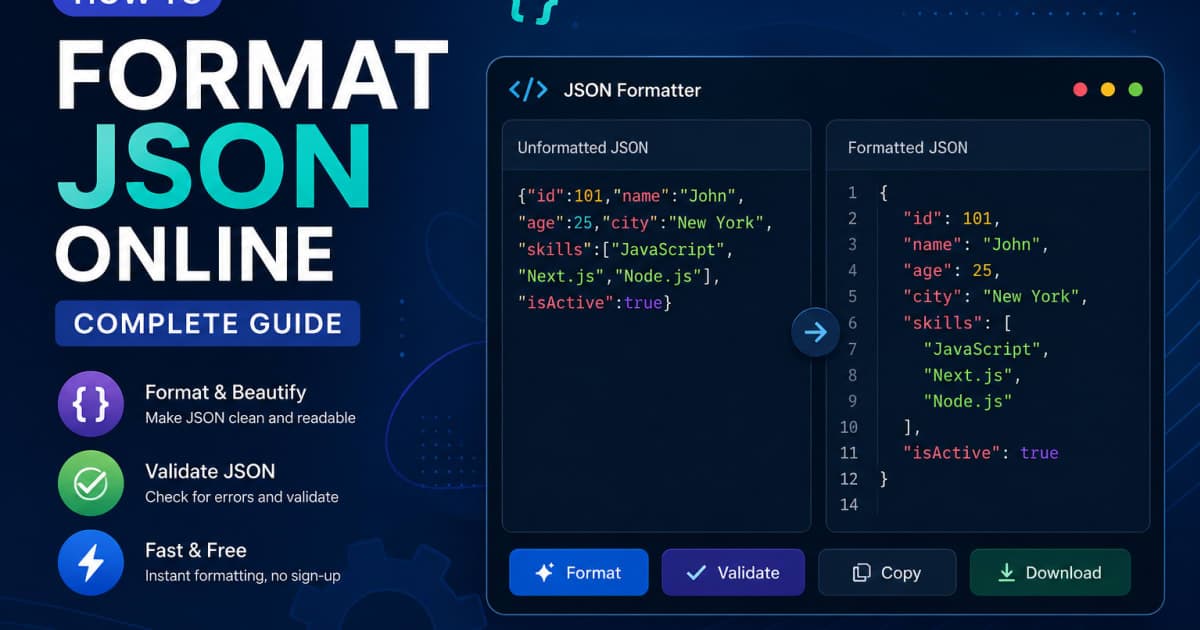
Introduction
In today’s API‑driven world, JSON (JavaScript Object Notation) is the lingua franca for data interchange. Whether you’re a backend engineer, a front‑end developer, or a data analyst, you’ll frequently encounter raw JSON payloads that are hard to read or debug. A well‑formatted JSON document not only looks cleaner but also reduces the risk of syntax errors and speeds up development cycles.
This guide walks you through everything you need to know about formatting JSON online from choosing the right tool to mastering advanced features and avoiding common pitfalls. By the end, you’ll be able to transform messy data into tidy, readable structures in seconds.
Why Proper JSON Formatting Matters
Readability – Proper indentation and spacing let developers spot missing commas or mismatched brackets instantly.
Debugging – When an API returns an error, a pretty‑printed JSON makes it easier to trace the problematic field.
Version Control – Clean JSON files are easier to diff and merge, preventing merge conflicts in Git.
Performance – While pretty printing doesn’t affect runtime, consistent formatting reduces the chance of accidental whitespace that could break parsers.
Compliance – Some regulatory frameworks require logs to be human‑readable; formatted JSON aids auditability.
A single misplaced comma can turn a valid request into a 400‑Bad‑Request. Formatting tools act as a first line of defense against such trivial bugs.
Top Online JSON Formatting Tools
Finding a reliable online formatter is easier than ever. Below are the most popular, feature‑rich options:
JSON Formatter – A lightweight, no‑frills tool that instantly pretty‑prints and validates JSON.
JSONLint – Offers a robust validator and supports custom formatting rules.
JSON Formatter & Validator (by Code Beautify) – Provides syntax highlighting, collapse/expand, and export options.
JSON Formatter & Validator Allows you to paste, format, and download the result as a file.
These tools differ mainly in UI polish and extra features such as syntax highlighting or download options. For quick formatting, the free JSON Formatter at /tools/json-formatter is often the go‑to choice because it requires no sign‑up and instantly displays errors.
Step‑by‑Step Guide to Formatting JSON Online
Below is a generic workflow that works across most online formatters. We’ll use the JSON Formatter as an example.
Copy the Raw JSON
{"name":"Alice","age":30,"skills":["JavaScript","Python"],"active":true}Open the Formatter
Navigate to/tools/json-formatterin your browser.Paste the JSON
Drop the raw JSON into the input box. The tool will automatically detect syntax errors.Choose Formatting Options
Indentation – 2 spaces (default) or 4 spaces.
Key Order – Keep the original order or alphabetically sort keys.
Line Breaks – Enable or disable for compact output.
Click “Format”
The pretty‑printed JSON appears in the output pane:{ "name": "Alice", "age": 30, "skills": [ "JavaScript", "Python" ], "active": true }Validate (Optional)
Most formatters highlight errors in red. If you’re unsure, copy the output into a validator like JSONLint.Copy or Download
Use the “Copy” button or “Download as .json” to save the formatted file.
If you need to embed JSON data into a JWT or decode a token, you can quickly switch to the JWT Decoder at
/tools/jwt-decoderto view the payload in a formatted manner.
Advanced Formatting Options
1. Custom Key Sorting
Some teams prefer keys in alphabetical order for consistency. Enable “Sort keys” to reorder automatically.
2. Compact Mode
When you need a single‑line payload for HTTP headers or environment variables, toggle the compact mode. The output becomes:
{"name":"Alice","age":30,"skills":["JavaScript","Python"],"active":true}
3. Pretty‑Print with Color Coding
Tools that support syntax highlighting display strings in green, numbers in blue, and booleans in orange. This visual cue speeds up error spotting.
4. Export Formats
Beyond .json, many formatters let you export as YAML or CSV for compatibility with other systems.
YAML is handy for configuration files.
CSV is useful for spreadsheet imports.
5. Integration with Development Environments
Some editors (VS Code, IntelliJ) have built‑in JSON formatters. However, an online tool is handy when you’re on a different machine or don’t have your IDE installed.
Validating and Testing Formatted JSON
Formatting is only half the battle. Validation ensures that the JSON is syntactically and semantically correct.
Validation Step | Tool | How to Use |
|---|---|---|
Syntax Validation | JSONLint | Paste the formatted JSON and click “Validate JSON”. |
Schema Validation | AJV (Online) | Provide a JSON Schema and the payload. |
Runtime Testing | Postman / Insomnia | Import the JSON as a request body and hit the endpoint. |
Unit Testing | Jest / Mocha | Write tests that parse the JSON and assert expected keys. |
For quick schema validation, you can also use the JSON Formatter’s built‑in schema checker by uploading a
.schema.jsonfile.
Common Formatting Mistakes to Avoid
Missing Commas – The most frequent error. Always double‑check the end of each key‑value pair.
Unquoted Keys – JSON requires double quotes around keys. Some developers forget this when copying from JavaScript objects.
Trailing Commas – While tolerated in some languages, JSON forbids a comma after the last element.
Using Single Quotes – Only double quotes are valid.
Incorrect Escape Sequences – Backslashes must be escaped (
\\).Large Strings Without Chunking – Very long strings can exceed browser limits; consider splitting them.
Best Practices for Maintaining Clean JSON
Consistent Indentation – Stick to 2 or 4 spaces across all files.
Avoid Duplicate Keys – JSON objects should have unique keys.
Keep Order Intuitive – Place frequently accessed keys first.
Document the Structure – Use a README or inline comments for complex schemas.
Automate Formatting – Add a pre‑commit hook (
prettier --write '**/*.json') to enforce formatting.Leverage Linting – Tools like
jsonlintoreslint-plugin-jsoncatch errors early.Version Control – Commit formatted JSON files; avoid binary dumps.
If you’re building APIs that return large JSON payloads, consider paginating the response or using a streaming format to keep the payload size manageable.
Conclusion
Proper JSON formatting is more than just a cosmetic choice; it’s a critical part of the software development lifecycle that enhances readability, debuggability, and reliability. By leveraging online formatters such as the JSON Formatter, validating with tools like JSONLint, and following the best practices outlined above, you can ensure that your JSON data stays clean, consistent, and error‑free.
Remember, a well‑structured JSON document is a developer’s best ally when troubleshooting, collaborating, or delivering a polished product.
FAQs
1. Can I format JSON directly in my browser without any tools?
Yes. Modern browsers allow you to paste JSON into the console and use JSON.stringify(JSON.parse(yourJson), null, 2) to pretty‑print it. However, online formatters provide instant validation and additional features.
2. How do I handle JSON with comments?
JSON does not support comments natively. If you need comments, consider using a pre‑processor that strips them or switch to a comment‑friendly format like YAML.
3. Is it safe to paste sensitive JSON data into an online formatter?
Avoid pasting confidential data into third‑party tools. Use local formatters or install a lightweight CLI like jq for secure handling.
4. Can I format JSON in a CI pipeline?
Absolutely. Use tools like jq or prettier in your CI scripts to automatically format and lint JSON files before deployment.
5. How do I convert JSON to CSV for spreadsheet analysis?
Many online formatters, such as the JSON Formatter, offer an export to CSV feature. Alternatively, use jq with a custom filter: jq -r '(.[0] | keys_unsorted) as $keys | $keys, map([.[]])[] | @csv' yourfile.json.